# GraphQL for Beginners: Build Real-Time Chat App with Apollo Client and React
Welcome back to [GraphQL for Beginners](https://lo-victoria.com/series/graphql)! A beginner-friendly series introducing the basic concepts of GraphQL and how to connect it to a front-end framework like React using Apollo.
In this part, we will complete our simple chat app by building our front-end with React and Apollo Client.
> If you haven't read the previous part, please read it [here](https://lo-victoria.com/graphql-for-beginners-setting-up-graphql-server).
## Step 1: Create a React App
To recap, our project folder currently has a `server` folder in it. Let's create a `client` folder now for our React app.
In our `client` folder, we can create a new React app:
```
npx create-react-app my-app
```
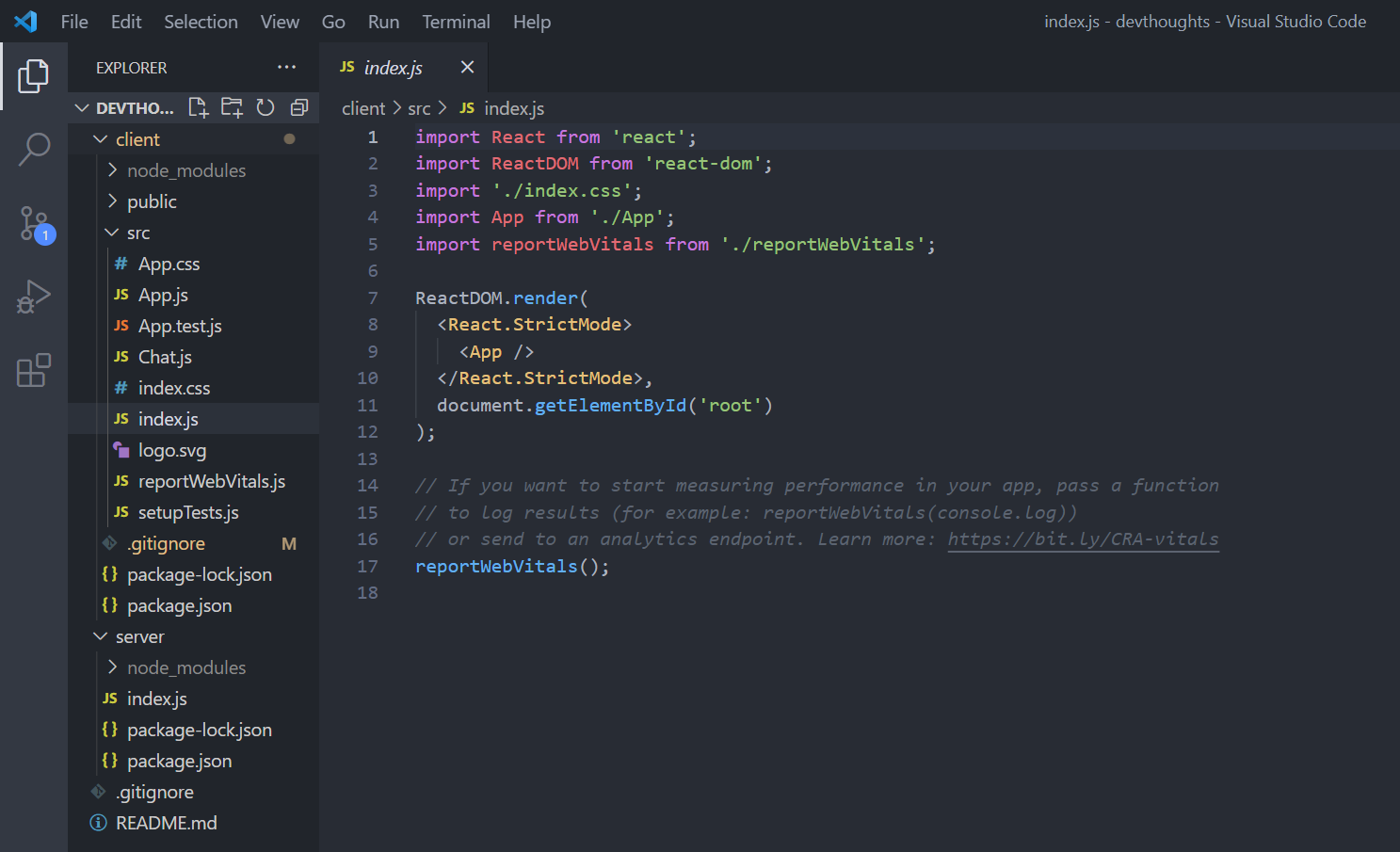
Now, your project folder should look something like this:
## Step 2: Install packages
To connect our React app to our GraphQL server, we need to install a few packages:
- `@apollo/client`: to set up Apollo Client in our React app
- `graphql`: to parse GraphQL queries
- `subscriptions-transport-ws`: to use subscriptions over WebSocket using a WebSocketLink
```
npm install @apollo/client graphql subscriptions-transport-ws
```
Optionally, you can install `@material-ui/core` for styling. I will be using some Material UI components in this project.
```
npm install @material-ui/core
```
## Step 3: Initialize WebSocketLink and ApolloClient
Let's create a Chat component by creating `Chat.js` in our React app's `src` folder. In this component, we will initialize our WebSocketLink and ApolloClient, to perform all the necessary queries and functions we need for our chat app.
First, let's import what we need from our installed packages.
```
import { ApolloClient, InMemoryCache, useMutation, useSubscription, gql} from '@apollo/client';
import { WebSocketLink } from "@apollo/client/link/ws";
import {Container, Chip, Grid, TextField, Button} from '@material-ui/core';
```
Then, initialize a `WebSocketLink` to handle our subscriptions below the import statements. The `uri` property should be the specific endpoint of your subscriptions in your GraphQL server. In our case, it is just `/`, and our server is at port 4000.
```
const link = new WebSocketLink({
uri: `ws://localhost:4000/`,
options: {
reconnect: true,
},
});
```
Now, let's initialize an `ApolloClient` instance so our client can fetch data from our GraphQL server at `http://localhost:4000/`.
```
export const client = new ApolloClient({
link, //websocket link
uri: 'http://localhost:4000/', //connect to server
cache: new InMemoryCache(),
});
```
Below that, we can have the Chat component return a simple header for now.
```
export const Chat = () =>{
return(
Welcome to DevThoughts! A simple chat app for the GraphQL series!
)
}
```
## Step 4: Connect ApolloClient with React
To connect the initialized ApolloClient instance with React, we can import ApolloProvider in our `App.js` file. This works like a context provider, which wraps the React app and places Apollo Client on the context, so it can be accessed from anywhere in the app's component tree.
In our `App.js` file, import ApolloProvider and wrap it around the components. Finally, we import our client instance and Chat component from `Chat.js`. Pass in `client` in the ApolloProvider component, and we're done with the setup.
```
import './App.css';
import { ApolloProvider } from '@apollo/client';
import {client, Chat} from './Chat'
function App() {
return (
Dev Thoughts 💭
);
}
export default App;
```
## Step 5: GraphQL Get Messages Query
Now that everything is set up, we can fetch and post data to our GraphQL server from our React app. To do that, we need to write some GraphQL queries in `Chat.js`.
We can define a query by wrapping in inside the gql template literal. Here's our query to get messages:
```
const GET_MESSAGES = gql`
subscription {
messages {
id
user
text
}
}
`;
```
> If you need a recap on subscriptions and queries, please read the [previous part](https://lo-victoria.com/graphql-for-beginners-setting-up-graphql-server) for this series.
Then, we use the `useSubscription` hook to execute the query like so:
```
const Messages = ({user}) =>{
const {data} = useSubscription(GET_MESSAGES) //executes query
if(!data){
return null; //if no data fetched, return null
}
//else return the fetched data
return (
//map fetched data here
)
}
```
As seen in the code above, the Messages component will execute the `GET_MESSAGES` query using the `useSubscription` hook. Then, we check if the fetched data is empty or not. If it is, the component returns nothing. Else, it should return all the messages in the `
`.
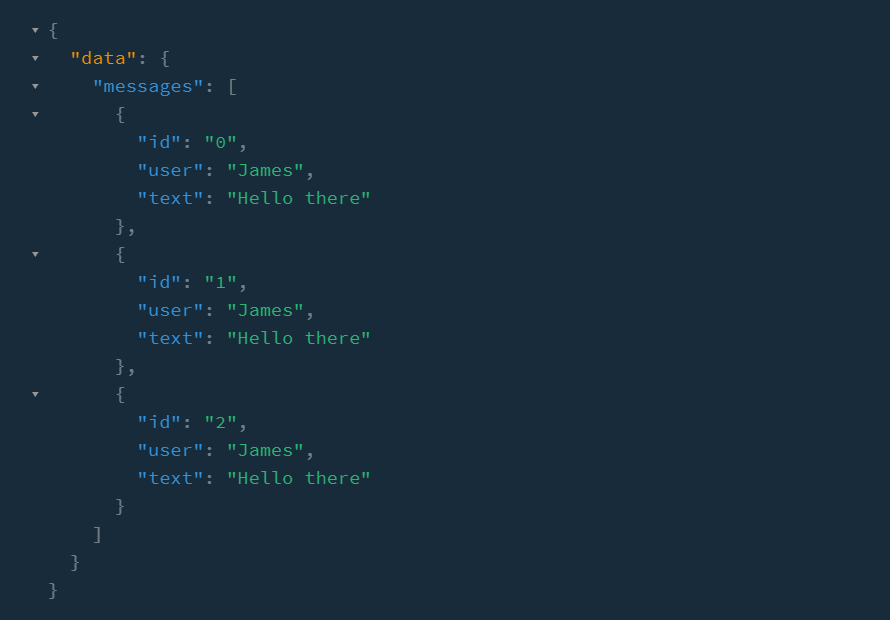
Note that the fetched data will be in the format like this:
So let's add the fetched data and map them for individual styling. Here's what the Messages component look like:
```
const Messages = () => {
const { data } = useSubscription(GET_MESSAGES);
if (!data) {
return null;
}
return (
{data.messages.map(({ id, user, text }) => {
return (
{user}
);
})}
);
};
```
Now, we add our Messages component into our Chat component that we created earlier in Step 3 like so:
```
export const Chat = () =>{
return(
Welcome to DevThoughts! A simple chat app for the GraphQL series!
/*add here*/
)
}
```
### Test!
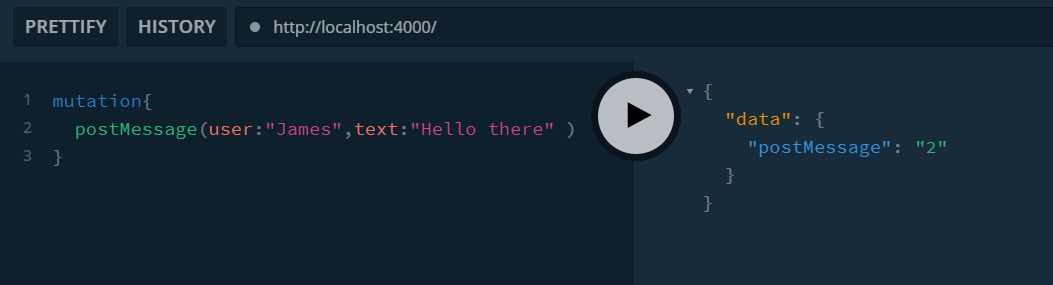
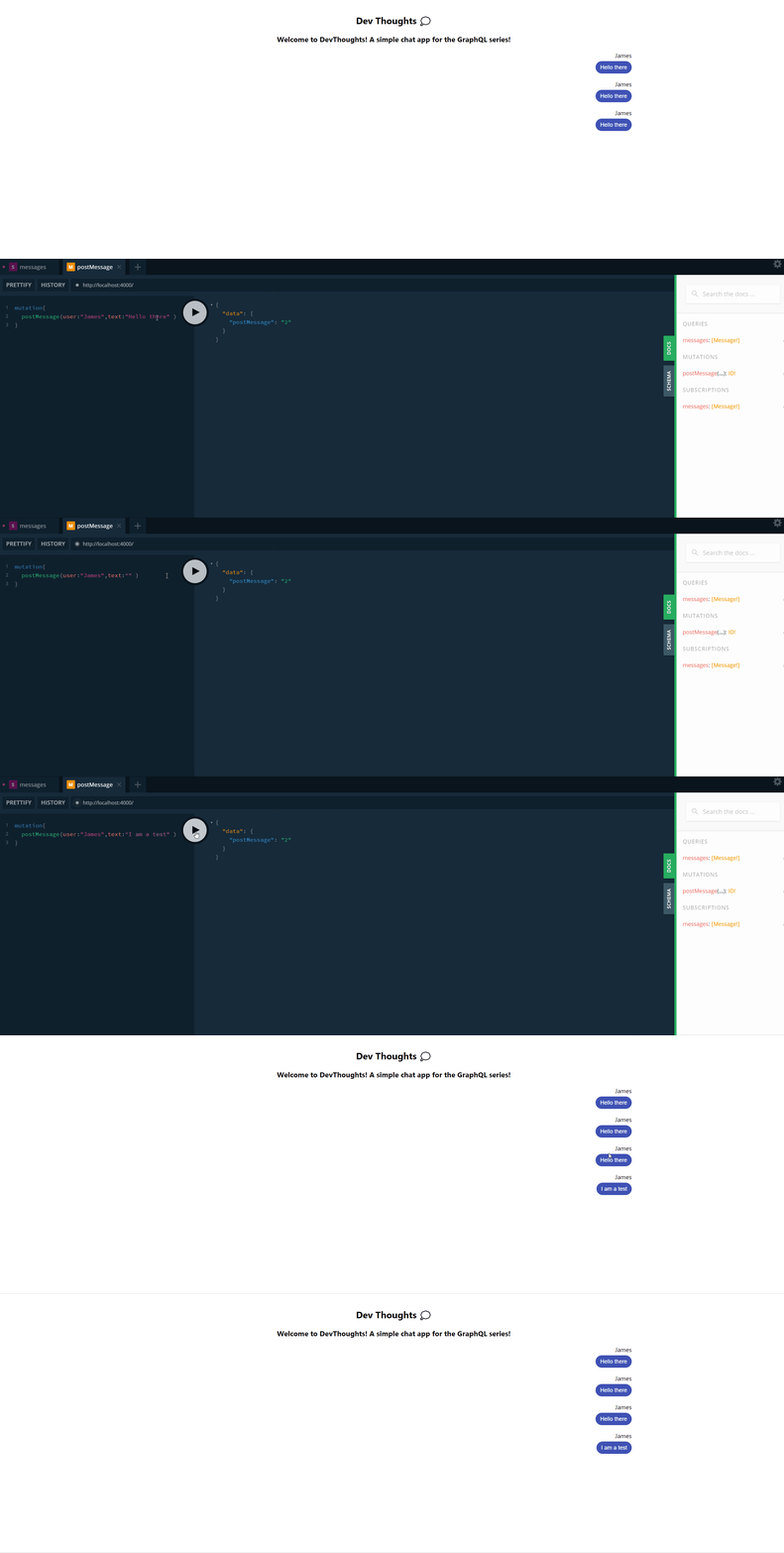
Let's test if it works, run the server at `http://localhost:4000/` and post a few messages to test via the playground.
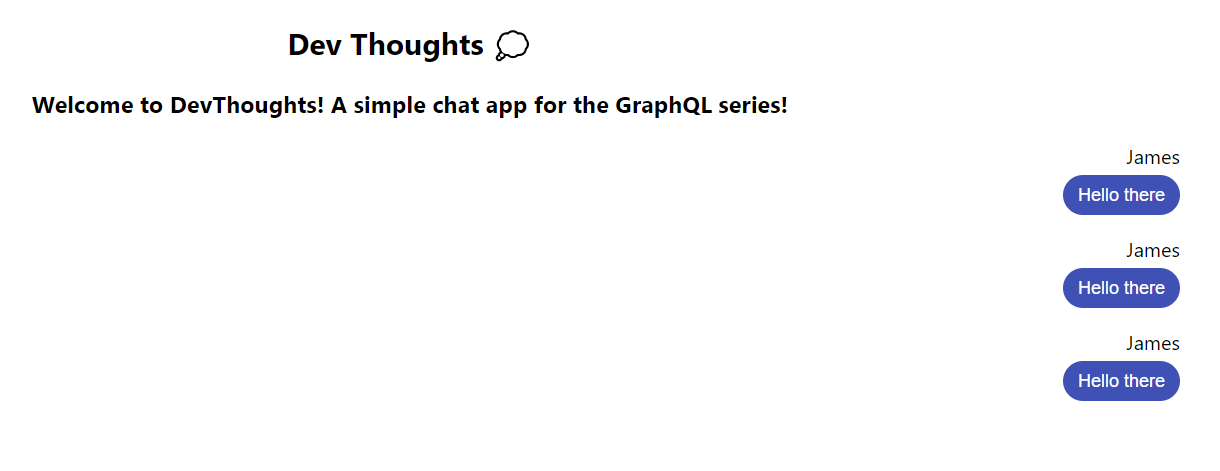
Then, run the React app by running `npm start` on the `client` folder. The Messages component should execute the subscription query and show the test messages.
Now let's post another message from the playground and watch the React app update the UI in real-time.
Great, now let's move on to creating a mutation query to allow posting new messages from our React app instead of our playground.
## Step 6: GraphQL Post Message Query
Let's add this query below our `GET_MESSAGES` query. Just like how we write it on our playground, the mutation query for `POST_MESSAGE` is as follows:
```
const POST_MESSAGE = gql`
mutation($user:String!, $text:String!){
postMessage(user:$user, text:$text)
}
`;
```
Then, we need a function called `sendMessage` to execute this query. To create this function, let's first create some UI elements where the user can type in the message then click a button which calls `sendMessage`.
In our `Chat` component, below our `Messages`, let's add the UI.
```
export const Chat = () =>{
return(
Welcome to DevThoughts! A simple chat app for the GraphQL series!
{/*add this block below*/}
{
setUser(e.target.value)}} value={user} size="small" fullWidth variant="outlined" required label="Required" label="Enter name" />
{
setText(e.target.value)}} value={text} size="small" fullWidth variant="outlined" required label="Required" label="Enter message here" />
)
}
```
This is what it looks like on the browser:
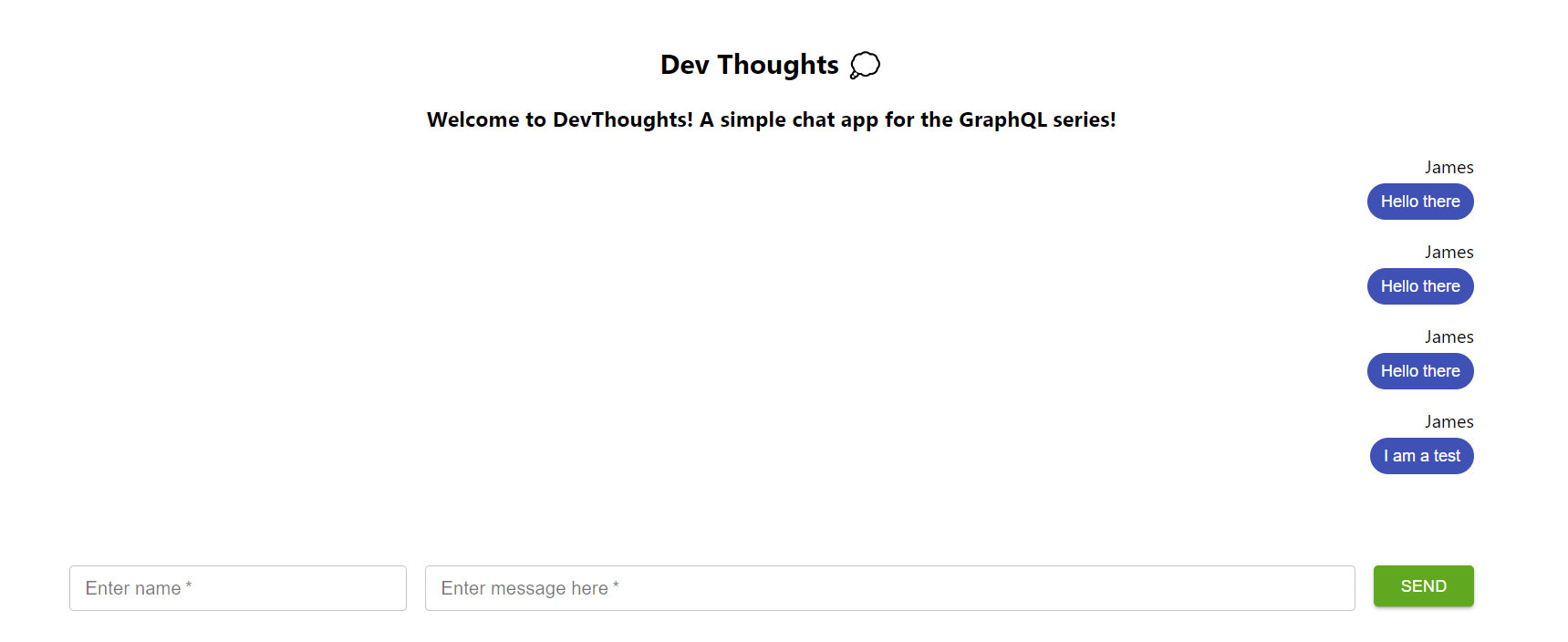
You may notice that in addition to `sendMessage`, I've added some new variables: `user` and `text`, which contain the values of the input fields we just included.

Let's import the `useState` hook at the top of our `Chat.js` and initialize our variables in the `Chat` component.
At the top of the file:
```
import React, {useState} from 'react';
```
In our `Chat` component:
```
export const Chat = () =>{
const [user, setUser] = useState("Victoria"); //initialize user
const [text, setText] = useState(""); //initialize text
return
//...
}
```
Finally, we create our sendMessage function below the variables. As described in the Apollo [documentation](https://www.apollographql.com/docs/react/data/mutations/), we must use the `useMutation` hook to execute mutations.
Here's what the code below does. Take your time to review and understand it:
1. Pass our `POST_MESSAGE` query in the `useMutation` hook which returns an array, where the first element is our mutate function, `postMessage`.
2. sendMessage first checks if both inputs are not empty. It executes the `postMessage` mutate function by passing the variables from the input (`user` and `text`) and resets the text field.
3. If one of the input fields is blank, an alert window will trigger.
```
export const Chat = () =>{
//...
// 1.
const [postMessage] = useMutation(POST_MESSAGE)
const sendMessage=()=>{
// 2.
if(text.length>0 && user.length >0){
//calls the mutate function
postMessage({
variables:{ user: user, text: text }
})
setText(""); //reset text field
}else{
// 3.
alert("Missing fields!")
}
}
return (
// ...
}
```
### Test
If we post a new message, it should execute the mutation perfectly and the subscription that listened for any changes would immediately update the UI with the new data.
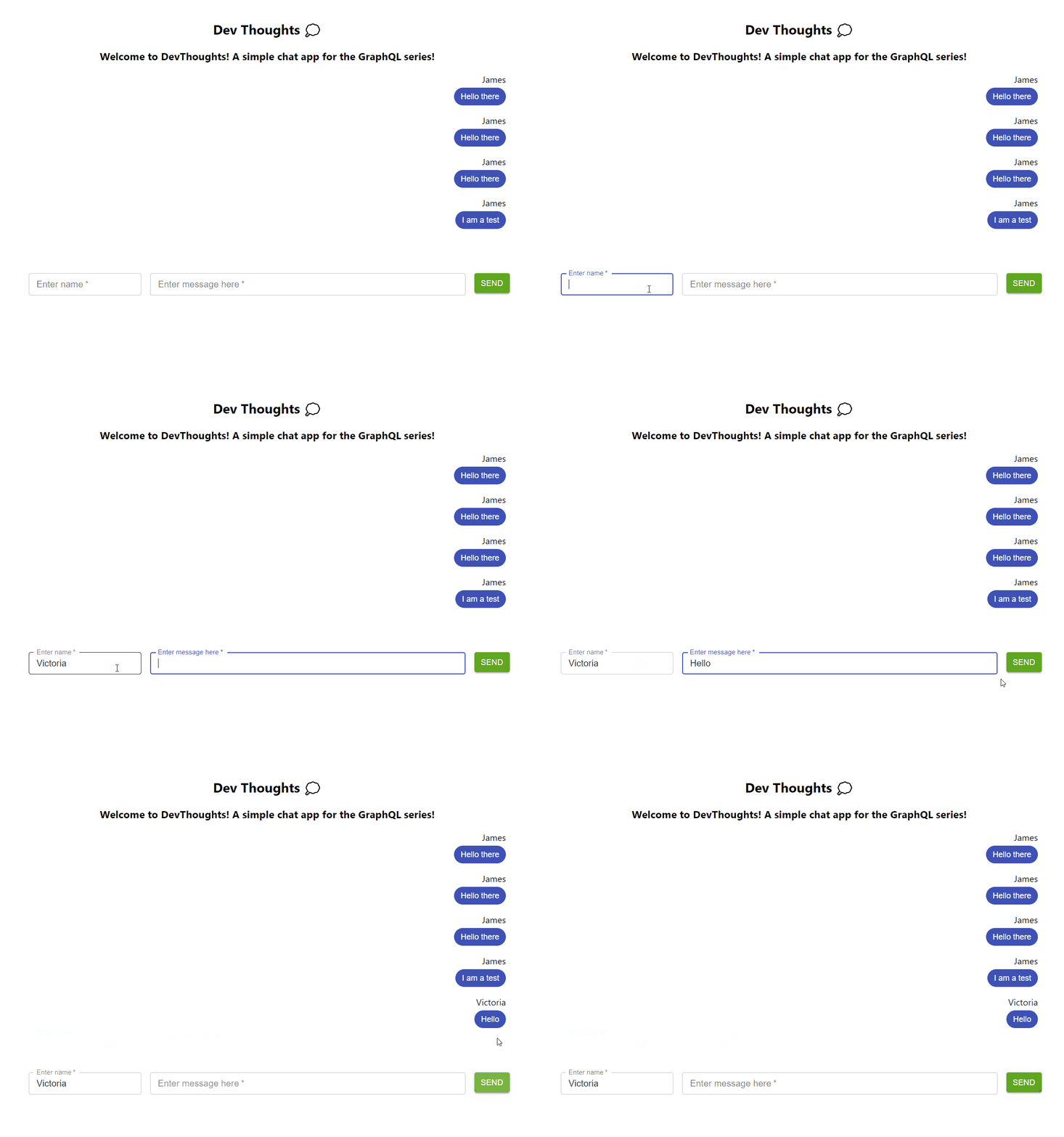
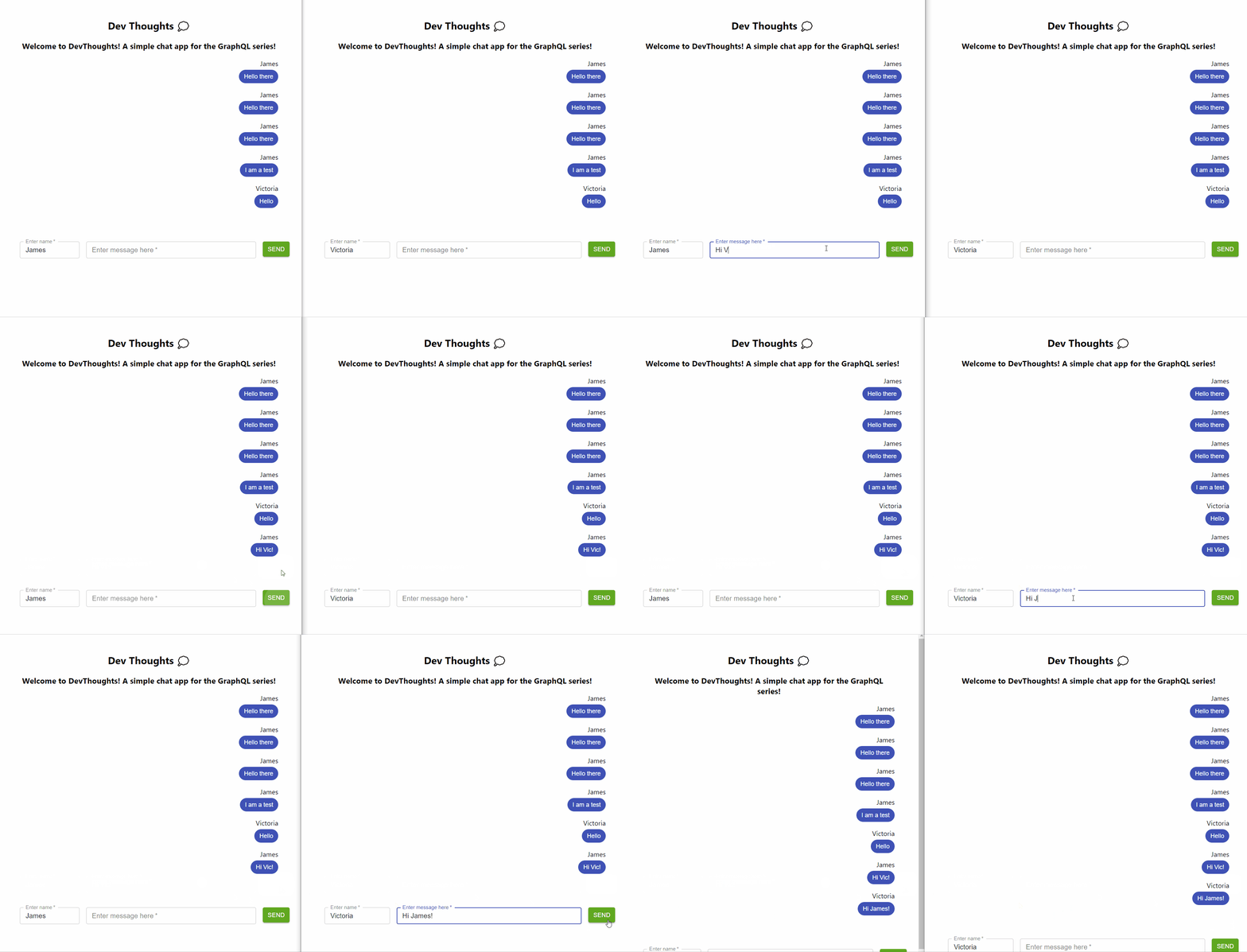
We can even open multiple windows so that it works like a real chat app!
## Step 7: Final Improvements
The clip above shows that our app can successfully post and get new messages. However, notice that the messages are always aligned to the right, no matter who the user is.
In typical chat apps, only the messages sent by the user will be on the right while the rest will be left-aligned. Let's add this small improvement to complete our chat app.
In our `Messages` component in the `Chat.js` file, let's have it accept our `user` variable as a prop. Then, we will give a different styling based on whether the message data's `user` property is equal to the `user` variable or not.
```
const Messages = ({user}) =>{
const {data} = useSubscription(GET_MESSAGES)
if(!data){
return null;
}
return (
)
}
```
Lastly, remember to pass the `user` variable in `Messages` under the `Chat` component:
```
export const Chat = () =>{
//...
return(
//...
//...
)
}
```
## Final Result & Words
As seen in the clip below, our chat app is finally complete!
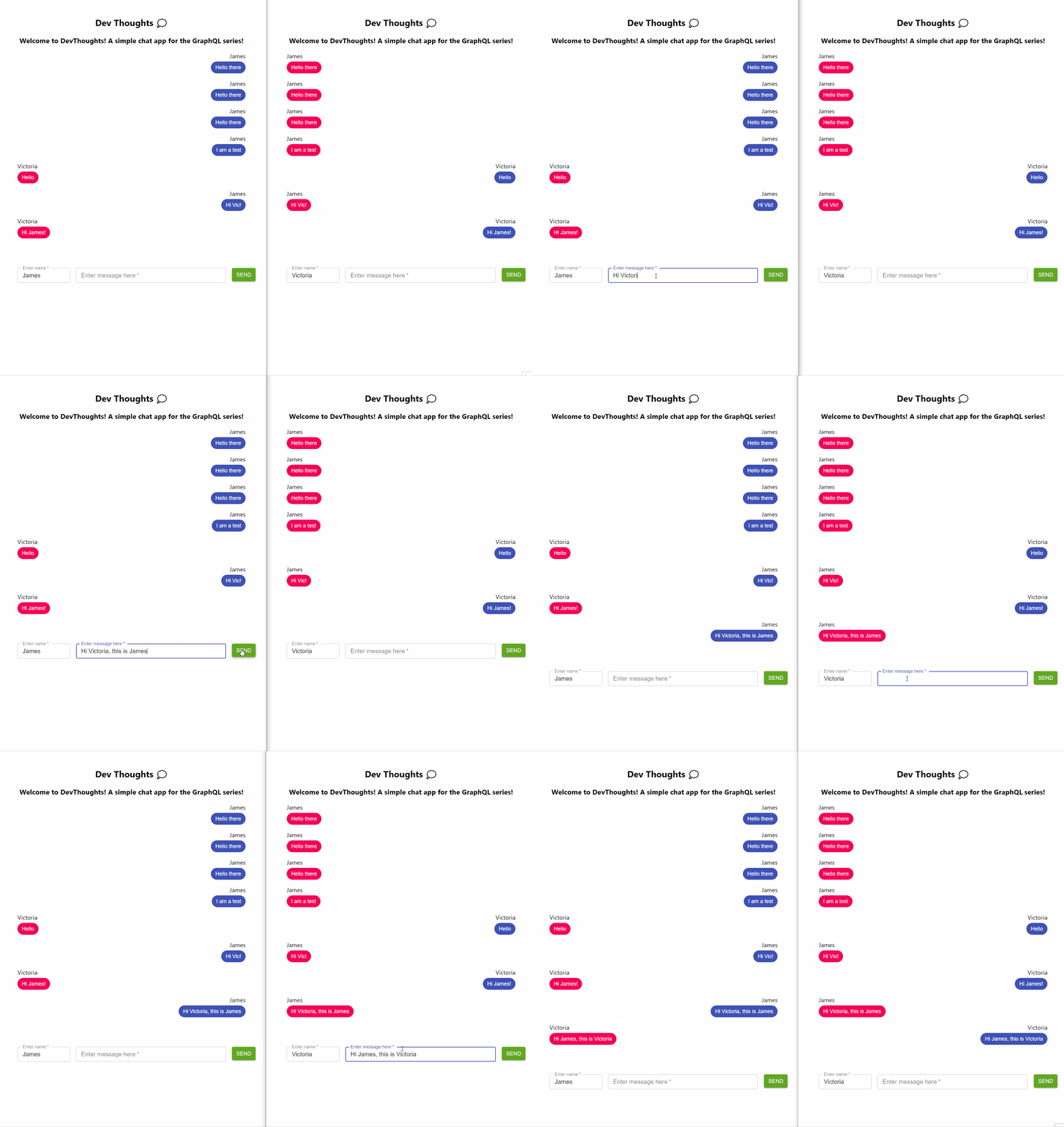
We have now come to the end of the GraphQL for Beginners series. If you have been following this series, thank you so much. I hope it has been helpful in getting you started with the basic concepts of GraphQL and integrating it to a front-end framework like React.
Do like and share this series around if you think it has helped you so it can reach more people.
Please check out the Reference section below to see the code for this project and to read more about GraphQL with Apollo. To improve and become more comfortable with GraphQL, I encourage you to try building your own projects or even add more features to this chat app as a start. All the best with your learning and cheers!
------------------
%%[g4g]
## References
- [GitHub Repo](https://github.com/victoria-lo/devthoughts)
- https://www.apollographql.com/docs/react/get-started/
- https://www.apollographql.com/docs/react/data/subscriptions/
- https://www.apollographql.com/docs/react/data/mutations/
- https://www.youtube.com/watch?v=E3NHd-PkLrQ&t=1697